
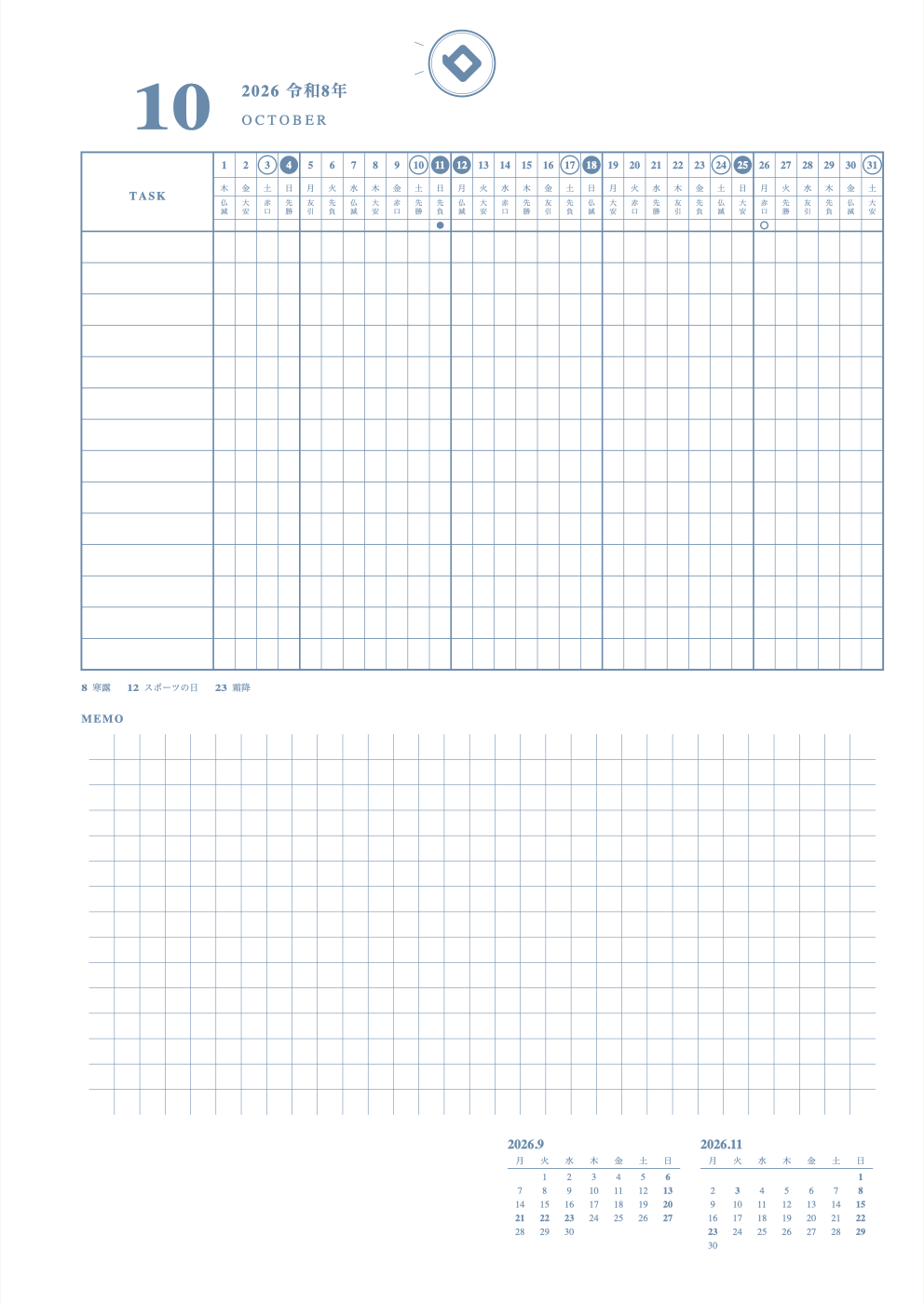
What is this layout?
 Write tasks on the left and color in bars next to the dates.
Monthly layouts show one month (or two) on a single sheet.
How to use
- Write one task at a time under TASK.
- Color in boxes across for the days it takes, to make a bar.
- Where bars overlap, you can see right away that it's a busy day.
The sample picture above shows a middle-schooler's plans: red = tests, due dates and deadlines; green = fun plans; yellow highlighter = the one most important thing. Layouts differ, so each one is written a little differently.
★ Tip
Good for long jobs like test study or getting ready for a talk.
How to make this layout on our site
- In "Monthly or weekly", choose Monthly, then pick Gantt Chart
- Choose the start month for a full year of sheets
- In "Display", turn holidays and the small calendar on or off
- In "Adjust shape", change lines, scale marks and memo areas a little
- Choose colors, then press "Print" to print one sheet and try it (free)
New here? Read How to make your own planner.
FAQ
Q. How many monthly layouts are there?
A. There are many: Monthly, Monthly + Index, Monthly Left, Monthly Vertical, Gantt, Monthly Tasks, Monthly + Memo Rows, Dual Monthly and more. You can adjust the grid lines and memo columns of each one with "Adjust shape".
Q. Can I combine it with a weekly layout?
A. Yes. You can make yearly + monthly or yearly + weekly. Use the monthly sheet for the big picture and the weekly sheet for details.