
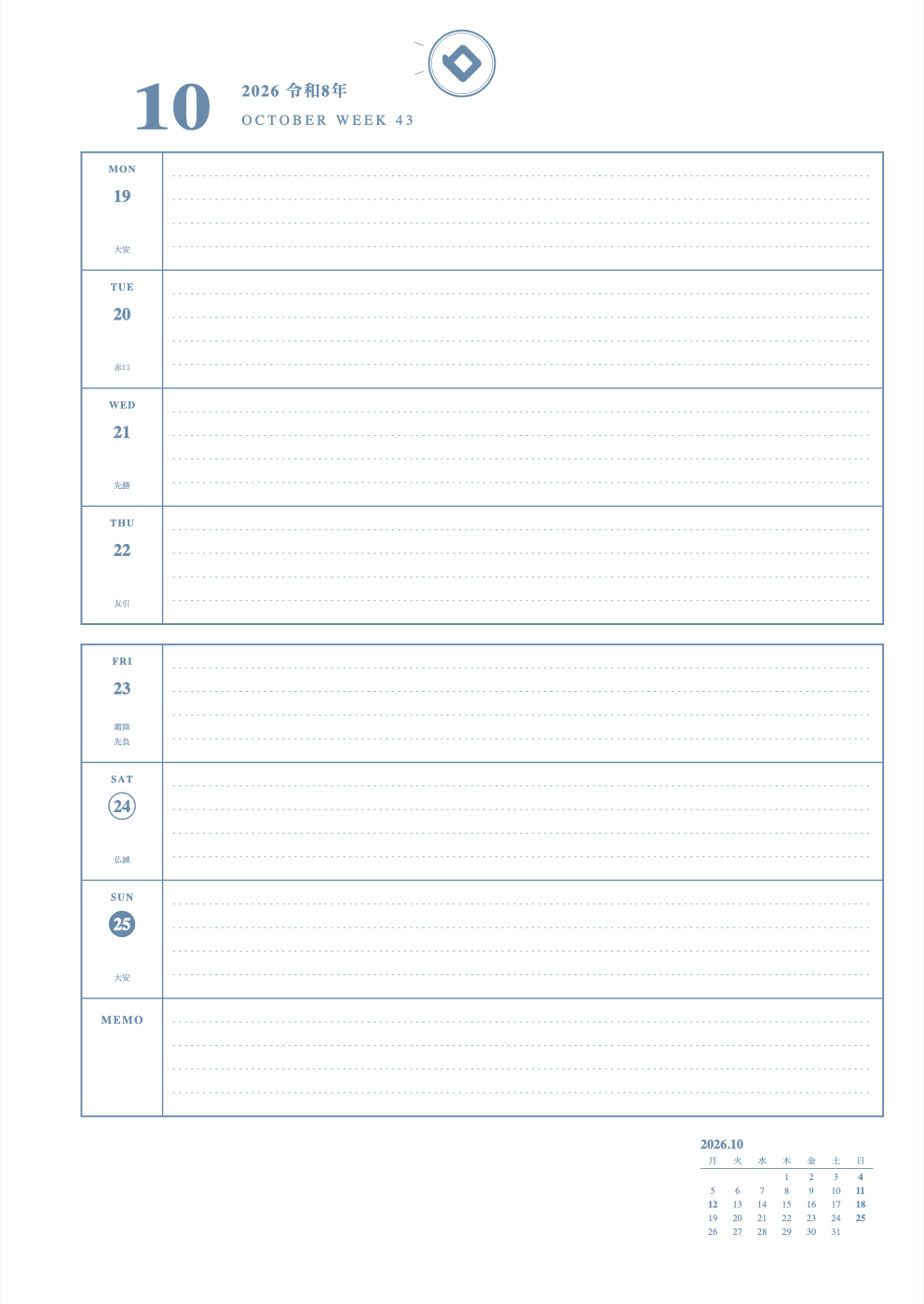
What is this layout?
 Each day is one long row. The date is on the left, and you write on the right.
Weekly Separate layouts divide the week into boxes, one box per day, so each day stands on its own.
How to use
- Write the day's plans from the top, in the wide space next to the date.
- Tests and due dates in red, fun in green, the most important in highlighter.
- At the bottom, write weekly goals or allowance in MEMO.
The sample picture above shows a middle-schooler's plans: red = tests, due dates and deadlines; green = fun plans; yellow highlighter = the one most important thing. Layouts differ, so each one is written a little differently.
★ Tip
Rows are long, so long sentences are fine. Each day is separate and easy to see.
How to make this layout on our site
- In "Monthly or weekly", choose Weekly Separate, then pick Weekly Separate
- Choose the start month for a full year of sheets
- In "Display", turn holidays and the small calendar on or off
- In "Adjust shape", change lines, scale marks and memo areas a little
- Choose colors, then press "Print" to print one sheet and try it (free)
New here? Read How to make your own planner.
FAQ
Q. What is the difference between Separate and Left?
A. In Separate, each day is its own box, like a diary page. In Left, the week is on the left and the notes are on the right.
Q. Can I add lines inside the boxes?
A. Yes. With "Adjust shape" you can add lines or a time scale inside each box.